 PhoneBridger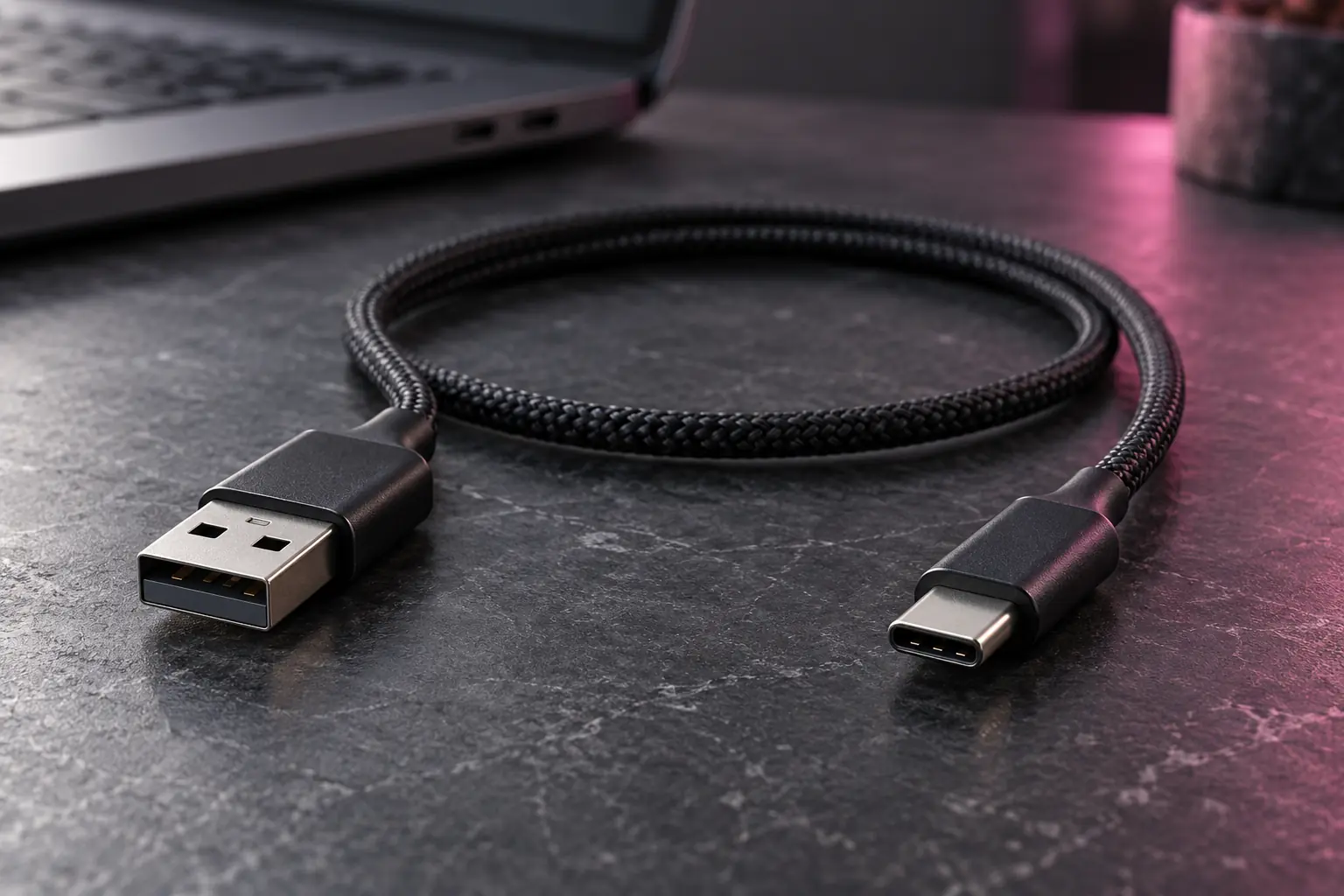
Choose for your desk, not a different feature tier
Wi-Fi keeps the desk free of a cable. USB is useful when your phone already sits beside a wired PC. PhoneBridger uses the same mouse, keyboard, supported audio and link features on either transport. Neither choice adds native file dragging to the current beta.
There is no universal latency or reliability promise here. Network conditions, cable quality and the phone matter. Start with the arrangement you can maintain comfortably, then confirm the active connection in both apps.
Start with Wi-Fi pairing
Follow Set up PhoneBridger on Windows and Android. Keep both devices on the same reachable Wi-Fi network, scan the PC pairing code in the Android companion and approve your own PC. PhoneBridger’s ordinary Wi-Fi connection does not require Android wireless debugging.
A guest or isolated network may let both devices access the internet while preventing them from communicating with each other. If pairing waits, check the network policy or try your own permitted network; do not disable a managed network’s protections.
Prepare USB once
- Use a data-capable cable that fits your phone and PC. A charging-only cable cannot provide this connection.
- On your Android phone, enable Developer options using the manufacturer’s applicable instructions, then enable USB debugging. Android’s official instructions explain where these settings live; menu locations vary.
- Connect the phone to your own PC and review the debugging authorization prompt on the phone. Authorize only a computer you trust.
- Keep PhoneBridger running and look for USB as the active connection. No separate USB launcher or PC app restart is required by the current beta.
USB debugging grants development access to the authorized computer. It is different from approving the computer inside PhoneBridger. If your device or workplace policy does not permit debugging, use Wi-Fi instead. Turn off debugging or revoke debugging authorizations when you no longer want that access.
What happens when you unplug?
Control returns to Windows while the transport changes. If the saved phone is reachable over Wi-Fi, PhoneBridger reconnects with the saved pairing. Cross the configured screen edge again to enter the phone; the switch itself does not silently repeat your previous action.
If Wi-Fi is unavailable, the app waits for a reachable saved phone. A disconnection does not erase the pairing. Forgetting a phone or computer is the deliberate trust-revocation action.
Using more than one phone
The beta supports up to three configured phone positions, but USB discovery supports one physical USB debugging phone at a time. Keep one such phone connected by cable; other paired phones can use Wi-Fi. Multiple USB debugging devices can make selection ambiguous, so do not assume that three cables give three USB sessions.
If USB does not take over
- Check that the cable carries data, not only power.
- Unlock the phone and check whether debugging authorization is waiting for your decision.
- Keep only the intended physical USB debugging phone attached.
- Check the active USB/Wi-Fi status in the apps rather than assuming a plugged-in cable is active.
- If Windows does not detect the Android device, official Android documentation notes that an applicable manufacturer USB driver may be needed. Do not install an unknown driver from a search advertisement.
A simple arrangement to try
For example, connect one desk phone by USB and keep a second paired phone on Wi-Fi. This illustrates a supported arrangement; it is not a claim that a particular phone, dock or cable has been tested. If you ask for help, include the phone model, Windows/Android versions, visible connection status and whether the cable transfers data.
Sources & scope
- Android Developers: connect a hardware device
USB debugging, computer authorization context and applicable Windows USB driver requirements; retrieved 2026-10-06.
- Android Developers: Developer options
Official platform settings context; retrieved 2026-10-06. PhoneBridger Wi-Fi does not use Android wireless debugging.
Product steps checked against the current release documentation on 6 October 2026. This private preview records a prepared editorial edition; it is not a past public publication. Review method & corrections.